Welcome! This guide walks you from account creation to your first live, bookable event embedded on your website.
1) Enter your Company name
This name appears on your public booking pages and emails.
2) Enter your First name & Last name
Used for calendar invites and client communications.
1. Click Connect Google Calendar.
2. Choose the Google account you use for meetings.
3. Accept permissions so Calenlead can:
Read your availability and create events in your selected calendar.
Automatically add Google Meet links to bookings (if you select “Google Meet” as the meeting type).
What this does for you
Tip: If you manage multiple calendars, pick the one that holds your real availability (e.g., “Work” vs “Personal”). You can change it later.

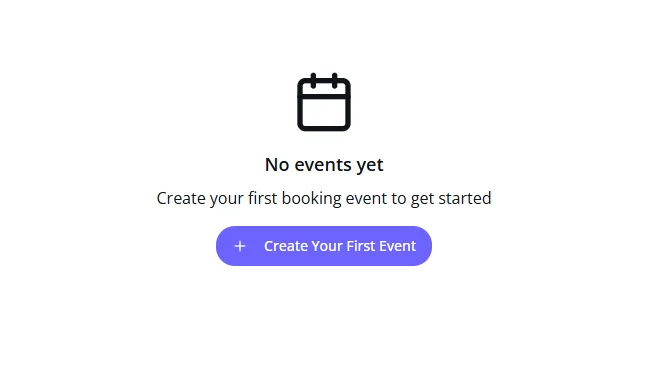
On the dashboard, click the only button: Create your first Event
Tip: If you manage multiple calendars, pick the one that holds your real availability (e.g., “Work” vs “Personal”). You can change it later.