Calenlead

Getting started with Calenlead

Welcome! This guide walks you from account creation to your first live, bookable event embedded on your website.

Create your account

1) Enter your Company name
This name appears on your public booking pages and emails.

2) Enter your First name & Last name
Used for calendar invites and client communications.

Connect Google Calendar and Google Meet

1. Click Connect Google Calendar.

2. Choose the Google account you use for meetings.

3. Accept permissions so Calenlead can:

Read your availability and create events in your selected calendar.

Automatically add Google Meet links to bookings (if you select “Google Meet” as the meeting type).

What this does for you

  • New bookings appear in your Google Calendar instantly
  • Invites are sent automatically to both you and the lead/client
  • For Meet meetings, a unique Meet link is added to the event and confirmations.

Tip: If you manage multiple calendars, pick the one that holds your real availability (e.g., “Work” vs “Personal”). You can change it later.

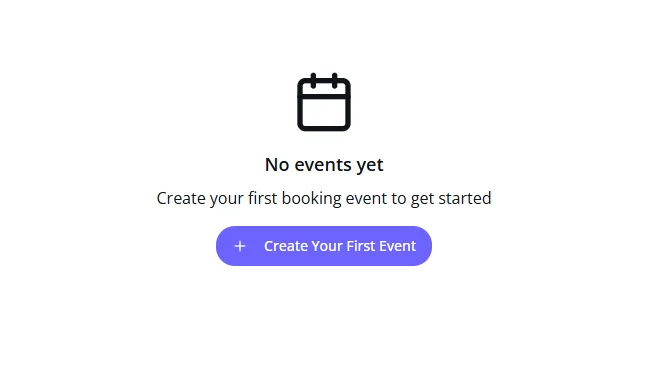
Create your first event

On the dashboard, click the only button: Create your first Event

Event basics

When creating your first event in Calenlead, fill out the following fields to personalize your booking experience and capture more leads effectively:
  • Event Title This is what your visitors will see on your booking form. Example: Free 30-min Strategy Call.
  • Type Choose the meeting type that fits your workflow:
    • On-site – for in-person meetings at your location.
    • Phone Call – for meetings by phone.
    • Google Meet – for online meetings (Calenlead automatically adds a Google Meet link to your Google Calendar invite).
  • Duration Select how long the meeting lasts (for example, 15, 30 or 60 minutes).
  • Slug (public URL) Customize your booking link. Example: https://calenlead.com/mycompany/meeting Tip: keep it short and relevant (e.g. /demo/call/meeting
  • Description (optional) Add a short message or a call to action to explain what the meeting is about or what clients should prepare.

Tip: If you manage multiple calendars, pick the one that holds your real availability (e.g., “Work” vs “Personal”). You can change it later.

Got more questions?

Drop us a line and we’ll reply faster than you expect